Width Height and Aspect Ratio
Understanding the Image Height Parameter
Adjusting the height of your images on our platform is straightforward with the use of the h parameter, which stands for “height”. Whether you’re a first-timer or just need a quick refresher, here’s how you can easily control your image heights.
How to Set the Height In Pixels
If you have a specific height in mind for your image, you can set it directly in pixels. For instance, to make an image 200 pixels tall, you would use h=200. It’s that direct and simple!
| Original Image | h=200 Image |
|---|---|
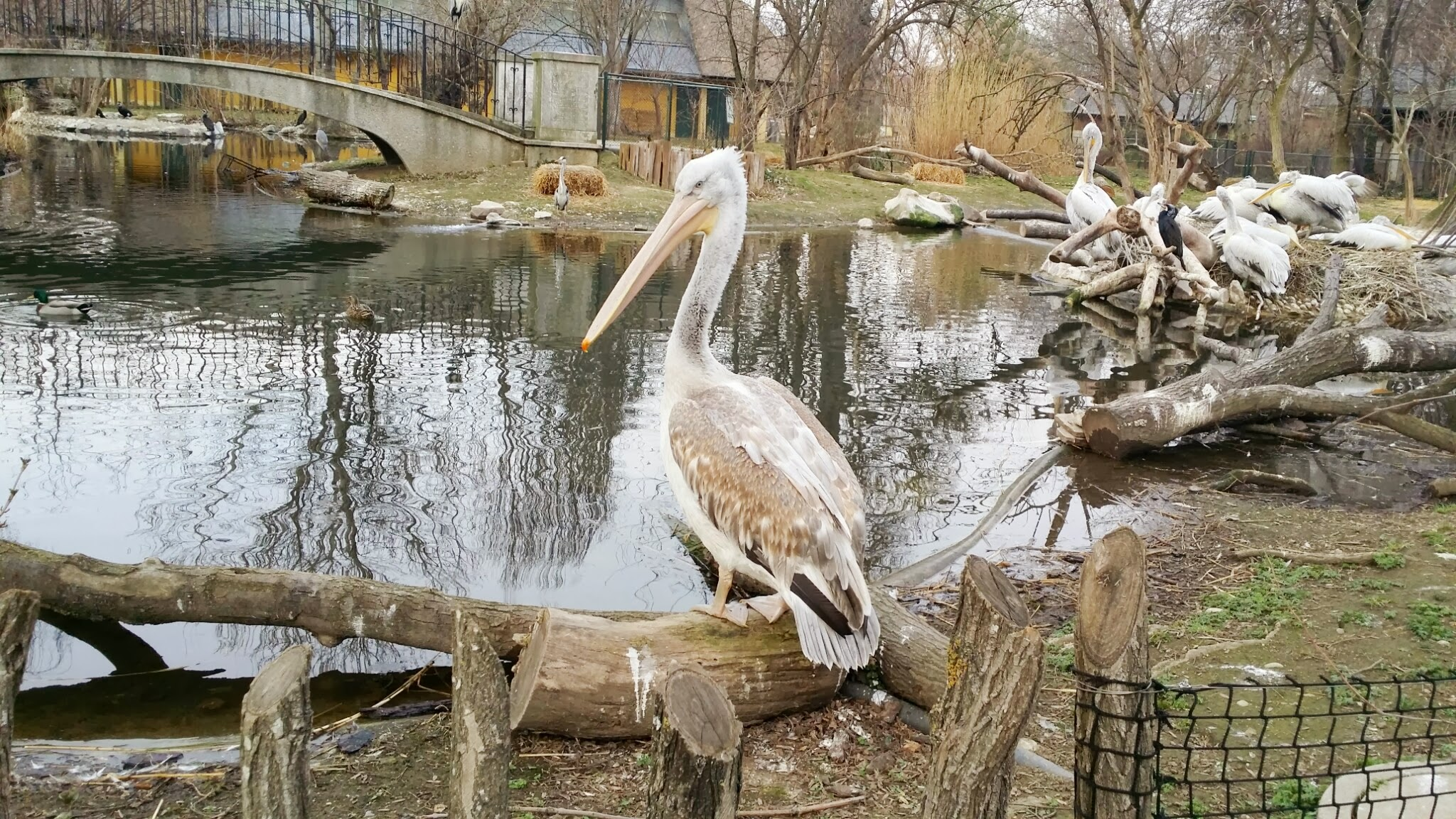
|
|
How to Set the Height Using Ratios
For more flexibility, you can also specify the height as a ratio of the original image’s height. By choosing a value between 0.0 and 1.0 for h, you’re deciding the proportional height of your new image compared to the original. So, h=0.5 will cut the original height in half for your new image.
| Original Image | h=0.5 Image |
|---|---|
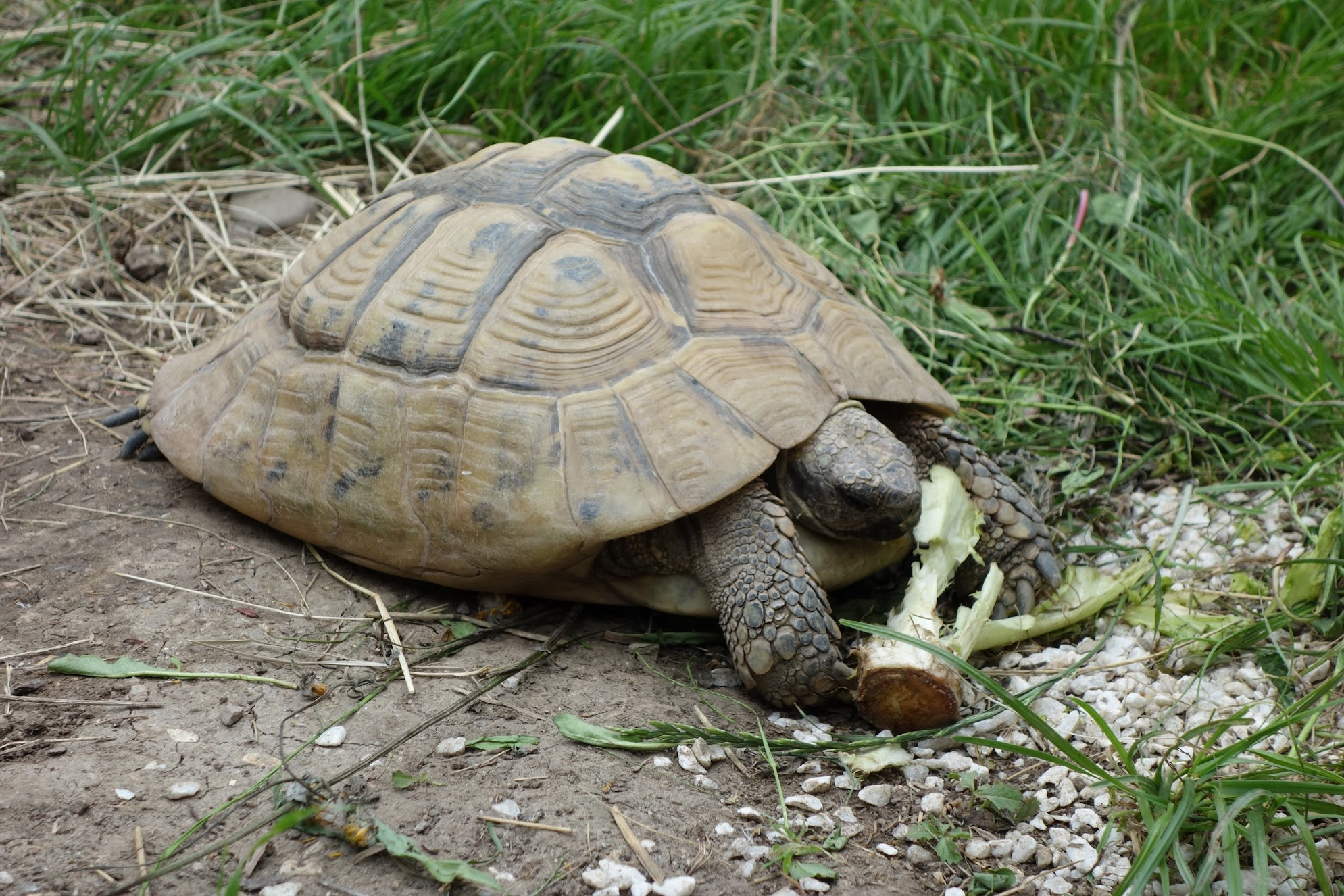
|
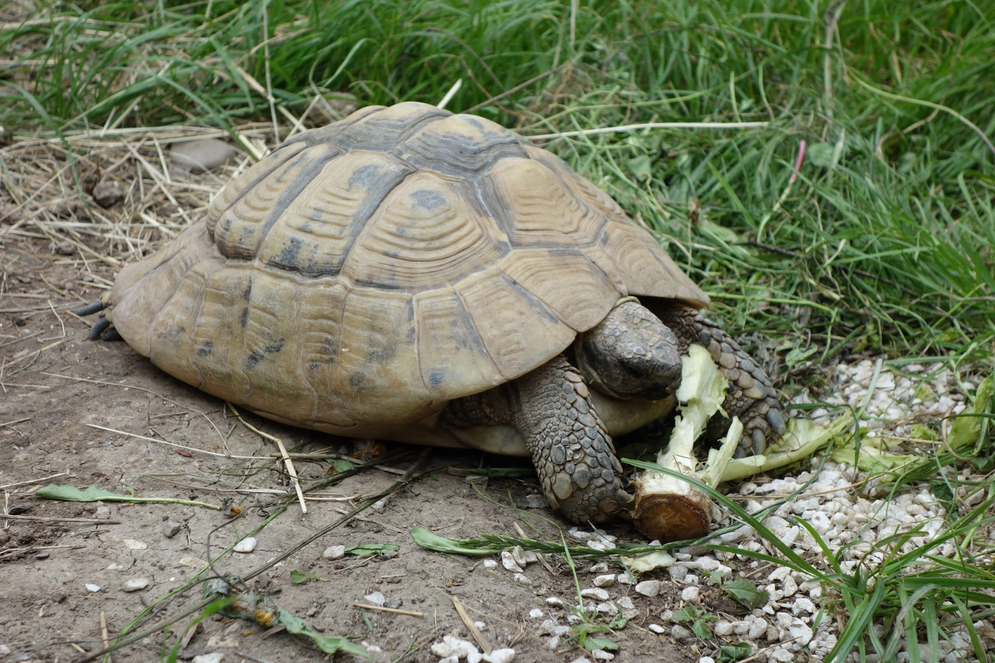
|
Width
Width doesn’t handle any differently than height. It’s that easy!
Automatic Adjustments
- If you only specify the height, we automatically adjust the width to maintain the original aspect ratio of the image. This ensures your image looks natural, without any distortion.
- If you leave out both width and height, we’ll just stick with the original dimensions of the image.
Aspect Ratios in Image Sizing
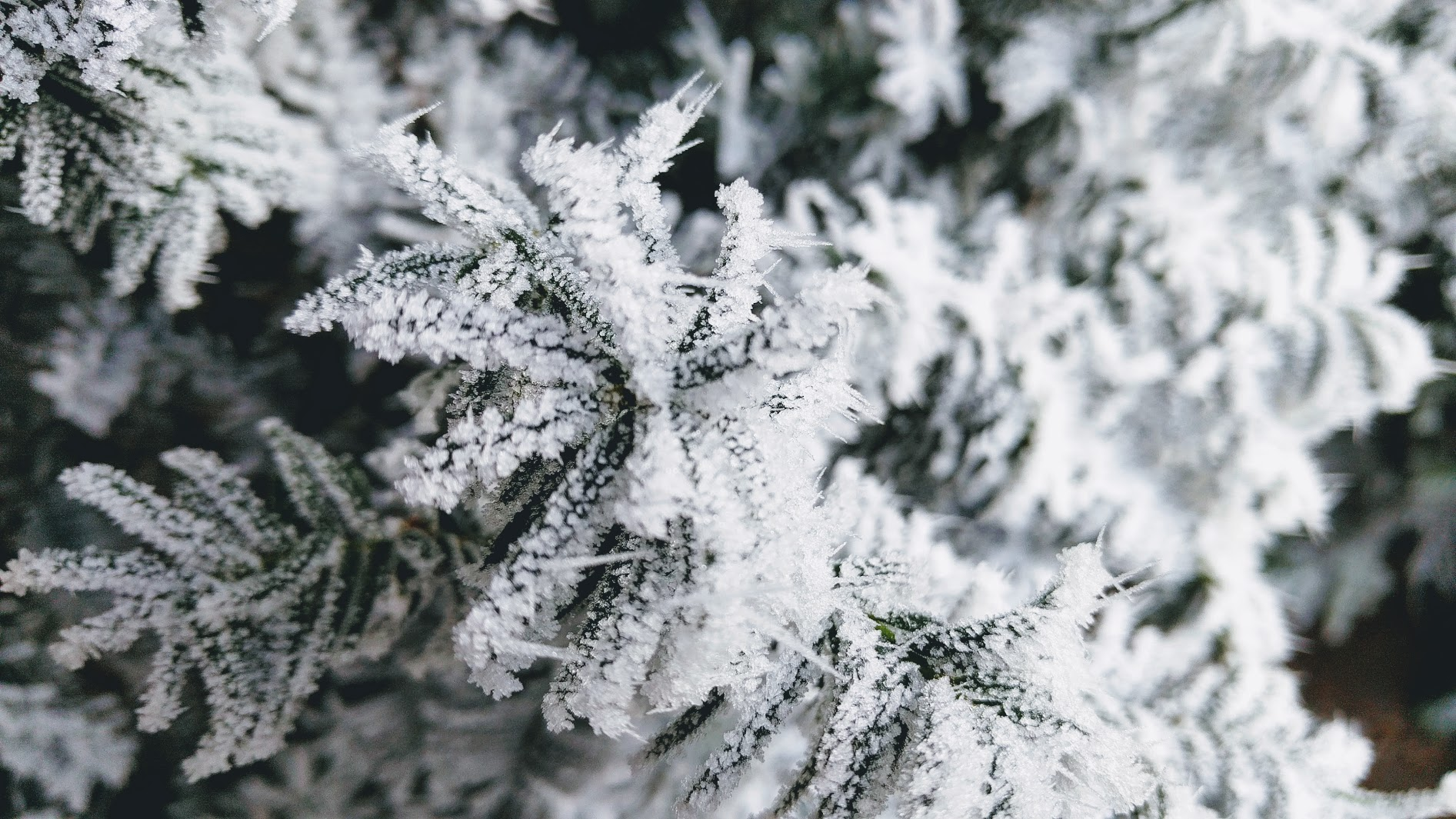
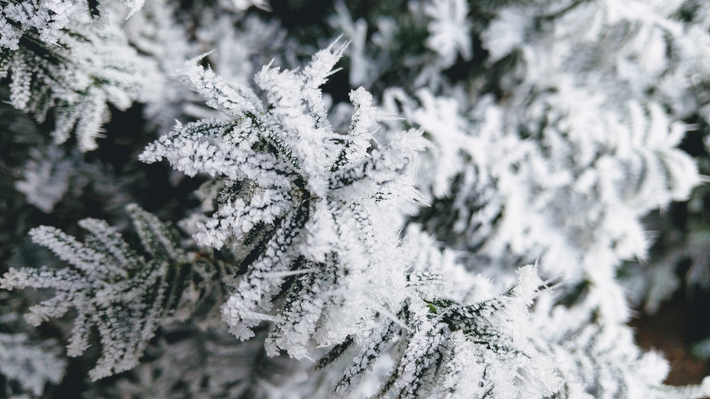
Aspect ratios express the proportional relationship between the width and height of an image, written as width:height. For instance, an aspect ratio of 4:6 means that for every 4 pixels of width, there are 6 pixels of height.
| Original Image | Aspect Ratioed (4:6) Image |
|---|---|
|
|
Use with Other Fit Modes
Aspect ratios are especially useful when combined with other fit modes like crop or fill.
| Cropped Image |
|---|

|
Extra Tips
- Fit Parameter: If you’re resizing using only the height and want to make sure the width is adjusted correctly, consider using
fit=clip. This setting helps to calculate the other dimension accurately. - Maximum Image Size: There’s a cap on how big an image can be - 8192x8192 pixels. If your resizing requests go beyond this, we’ll scale down the image to fit within these limits.
- Fit Modes: If you want to learn more about Fit Modes
And that’s it! With the h, w and ar parameters, you’re all set to adjust your images’ heights to better suit your project needs, whether it’s for improving site speed, fitting into specific layouts, or just making your images look their best.
Enjoy your image editing journey!